Parking Lot Grading in Civil 3D Using Grading Objects
Learn how to establish proper drainage and surface control in parking lot design.
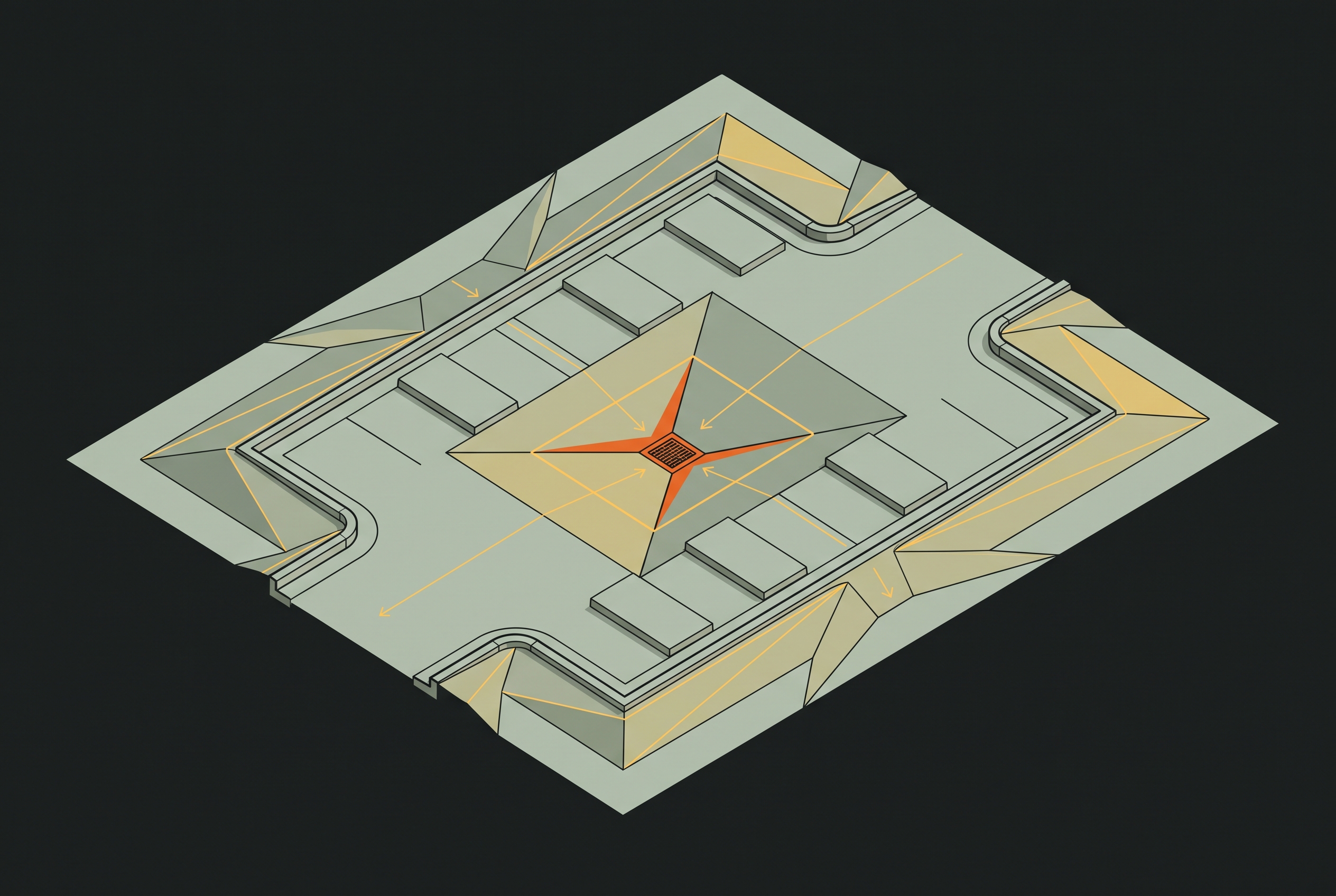
A lot that looks nearly flat can still trap water at a low point inside it. Establishing feature lines, projecting slopes to the right targets, building the design surface, and verifying drainage keeps the finished model tied to design intent.
How sites and grading groups organize everything before any slope is projected
The first decisions concern which site will contain the grading work and how the grading group will build its surface. A Civil 3D site collects objects, including parcels, alignments, grading objects, and feature lines, that share a common topology. Objects within that site are therefore related and can interact with one another. The choice of site sets up those relationships before elevations or slope criteria are added to the model.
That interaction matters when feature lines come from a curb corridor model. Expert Elite Mike Kingdon's curb corridor tutorial recommends placing extracted feature lines in a separate site from the grading objects that reference them to avoid unintended interactions. The distinction is between a reference that supports the grading design and shared topology that can affect it. Separating the sites in this workflow controls the interaction without removing the role of the extracted feature lines.
The grading group then provides collective control over related grading objects. Its properties establish which grading criteria set to use and whether to create a surface automatically from the associated objects. The group can also calculate total cut and fill across its members.
That design surface is what gets contoured, analyzed, and ultimately stamped. Keeping it tied to the grading group preserves the dynamic relationship between the grading geometry and the automatically created surface. Setting up the sites and grading groups is thus part of how the grading works, beyond the work of getting ready. They establish the structure through which later elevation and criteria changes can reach the finished surface.
Establishing feature lines as the elevation skeleton of the lot
With the data structure established, feature lines give the parking lot its physical controls. They form the elevation skeleton from which grading objects project slopes. As surface breaklines, they act as hard edges that Civil 3D honors when building the TIN. The surface follows these controls rather than interpolating through them, so their placement and elevations govern the geometry that follows.
Typical locations include the perimeter curb line, building pad edge, interior drive aisle centerlines, and island boundaries. The perimeter curb feature line defines the outermost grading limit, and its elevations determine how the lot ties into an adjacent roadway or grade. Feature lines inside the lot at drive aisle crowns control which way the cross-slope runs across parking bays. Their placement directs water toward designated low points and keeps it clear of travel lanes.
Feature line vertices can receive elevations in three ways, which are absolute elevation, slope from a prior vertex, or interpolation between two fixed points. An absolute elevation fixes a vertex at a known height. Assignment by slope establishes its elevation relative to the preceding vertex. Interpolation establishes elevations between fixed controls. The choice determines how Civil 3D fills the surface between those control points, without changing the need for a coherent drainage pattern.
The feature lines must also express constraints that cannot be left to later surface cleanup. The lot must shed water, remain constructible, and meet ADA maximum cross-slope requirements across accessible routes and stalls. Drainage slope and accessible cross-slope requirements interact, so neither can be treated as an afterthought. Keeping those decisions in named feature lines makes the intended geometry legible when a contractor questions a grade or a reviewer asks why water flows in a particular direction.
How grading objects project slopes from feature lines to a target
A grading object takes the elevation control established by a feature line and projects a slope outward until it reaches a defined target. The target determines where that projection stops, while the grading criteria determine the slope it follows. Choosing a target is therefore a design decision about the purpose of a particular zone. A perimeter tie-in and an interior transition may start with much the same geometry but need different rules for where they stop.
Civil 3D provides four core targeting modes. Grade to Surface projects to an existing ground surface and serves perimeter embankments and cuttings where the lot ties into natural grade. Grade to Elevation projects to a set finished elevation and is used for platform grading where a pad must reach a known finish floor elevation. Grade to Distance projects for a fixed horizontal distance and is used for drainage swales, curb returns, and transitions whose width is known. Grade to Relative Elevation projects to a vertical offset from the starting elevation and serves a fixed-height berm or step.
The grading criteria include the slope definition and the relevant surface or distance target, with saved criteria sets available for reuse in firm templates. The resulting projected feature line runs parallel to the original at the slope and elevation defined by those criteria. It maintains a dynamic relationship with the source feature line and updates when the source changes. That dependency is what allows an elevation correction to carry into the projected geometry.
The same mechanism also explains common errors. Using Grade to Surface inside the lot makes the projection follow existing ground, which takes it away from the designed drainage pattern. Cut/fill search order creates a different problem because it controls which side of a grading object gets projected first when both conditions exist. A misconfigured search order can prevent a grading object from building correctly and requires direct diagnosis. Civil 3D cannot fix that criteria problem on its own.
Building the grading group surface and filling interior gaps with Grading Infill
Projected grading geometry does not, by itself, provide the complete surface needed for analysis. The grading group's automatic surface creation setting stitches the grading objects in the group into a single TIN. Without that setting enabled, the objects exist as geometry but do not produce the group surface to contour or analyze. Surface creation is therefore the step that turns the individual projections into a shared model.
The enclosed interior requires another part of that model, which is Grading Infill. The tool fills a region entirely enclosed by feature lines and stitches that area into the grading group surface. In a parking lot, the large paved field between perimeter and interior feature lines is typically the infill zone. The slope projections establish its edges, while the infill interpolates the interior.
A fully closed feature line network is the prerequisite for placing that infill. A single gap prevents Civil 3D from filling the intended region and leaves a void in the surface. Closing the loop is consequently part of building the model, rather than optional cleanup after the main grading work. An infill area with gaps can give wrong volumes, contours, and drainage analysis because parts of the planned paved area are missing.
Once the surface is built, the grading group reports total cut and fill volumes for its member objects. This is the first point in the sequence where the designer can assess earthwork balance without leaving Civil 3D. Those quantities come from the surface as built, so it must be complete before they are used to judge the design. The same completed model must also support the drainage checks that follow. A surface ready for contour display is not necessarily a surface ready for issue.
Verifying drainage on the finished surface before anything leaves Civil 3D
Drainage verification tests whether the assembled surface does what the feature lines and grading criteria were intended to achieve. Civil 3D builds the surface it is given but does not automatically flag a drainage failure. A plan view can therefore look right even when the design fails to drain. Because pooled water on pavement presents both safety and liability concerns, analysis must be a deliberate step before the drawing is issued.
Contour display gives a quick view of depressions inside the lot where water can collect. Closed contours inside the lot boundary warrant examination for that condition. Slope analysis then uses color-coded bands to show where paved surfaces fall below the minimum drainage slope.
Flow paths and watersheds take the check further by calculating which way water flows across the surface and finding the drainage basins. On the design surface, they show whether runoff reaches the intended low points and inlets and identify unintended depressions where it collects. Findings can include an inadvertent sump at an infill boundary where projected slopes meet, a drive aisle crown that does not provide enough slope, or a perimeter tie-in below the curb gutter line.
The correction belongs at the source of the condition. Adjust the responsible feature line elevation or grading object criteria, rebuild the surface, and repeat the analysis. Editing the surface TIN by hand instead breaks its dynamic relationship with the grading group and leaves a patch that the design's controls no longer govern. Source-level correction keeps the model auditable because the finished grade remains traceable to the objects that define it. That traceability also makes the model revision-safe, allowing a later change to update through the grading sequence.
Where Grading Optimization fits into this workflow and what it changes
Grading Optimization builds on this understanding by automating the iterative refinement of slopes. The designer still defines the constraints, targets, and zones that describe an acceptable parking lot surface. Drainage verification remains necessary on its output.
A parking lot optimization setup assigns grading extents for the building pad and parking area and defines maximum parking slope and minimum drainage slope constraints. The building pad can be designated level without a fixed elevation, while a drainage line directs water away from the structure. The engine then runs simulations and generates a feasibility convergence plot that flattens when an ideal grading configuration is achieved. The designer reads that convergence rather than working through a list of intermediate slope calculations.
Eagle Point Software's Grading Optimization Workflow course describes zones defined by closed CAD geometry, including Grading Limits, Parking Lots, Accessible Paths, and Sidewalks. Zones next to each other stitch together automatically, and zone priority sets which one takes precedence where they overlap. Curbs and retaining walls placed on a zone inherit its elevation at their low side and grade upward from there. This hierarchy removes the manual elevation-threading required to coordinate those relationships in the standard feature-line workflow.
The trade-off is less direct authorship over intermediate grading decisions. A feature-line-first approach keeps design intent resident in explicit elevation controls that contractors and reviewers can follow. Optimization instead removes much of the manual slope iteration while retaining the designer's responsibility for every constraint and the final output. Autodesk's commissioned productivity study found that Grading Optimization allowed users to complete grading tasks up to 74% faster than standard Civil 3D grading tools, per Autodesk's analysis. The work saved mattered most when storage volume or earthwork balance requirements meant the design had to be revised again and again.
Grading Optimization is available as a free extension with an active Civil 3D subscription for Civil 3D 2024 and later, downloaded separately through Autodesk Account. Its value is faster iteration once the designer understands the required slopes and drainage pattern. It does not replace the sequence of defining controls, building a complete surface, and testing drainage. Whether slopes are projected directly or refined through optimization, the finished model must stay tied to clear design intent so its grades can be defended. That is what makes it possible to explain the issued grades and absorb future changes without starting over.
Notes
- 1 The benefits of using Grading Optimization for Civil 3D The benefits of using
Provided the 74% faster productivity figure cited in the Grading Optimization section.
- About Grading
Informed the explanation of grading group properties, surface creation settings, and how grading objects project slopes.
- Creating Grading Infill Entities in Civil 3D: Step-by-Step Tutorial - Free Video Tutorial
Informed the section on Grading Infill, including the requirement for a fully closed feature line network and the role of infill in completing the grading group surface.
Every new piece from Grading Bench, as it's published.
Follow