Civil 3D Plan Production Automation With Data Shortcuts
Data shortcuts separate design from production for reliable automation with Dynamo.
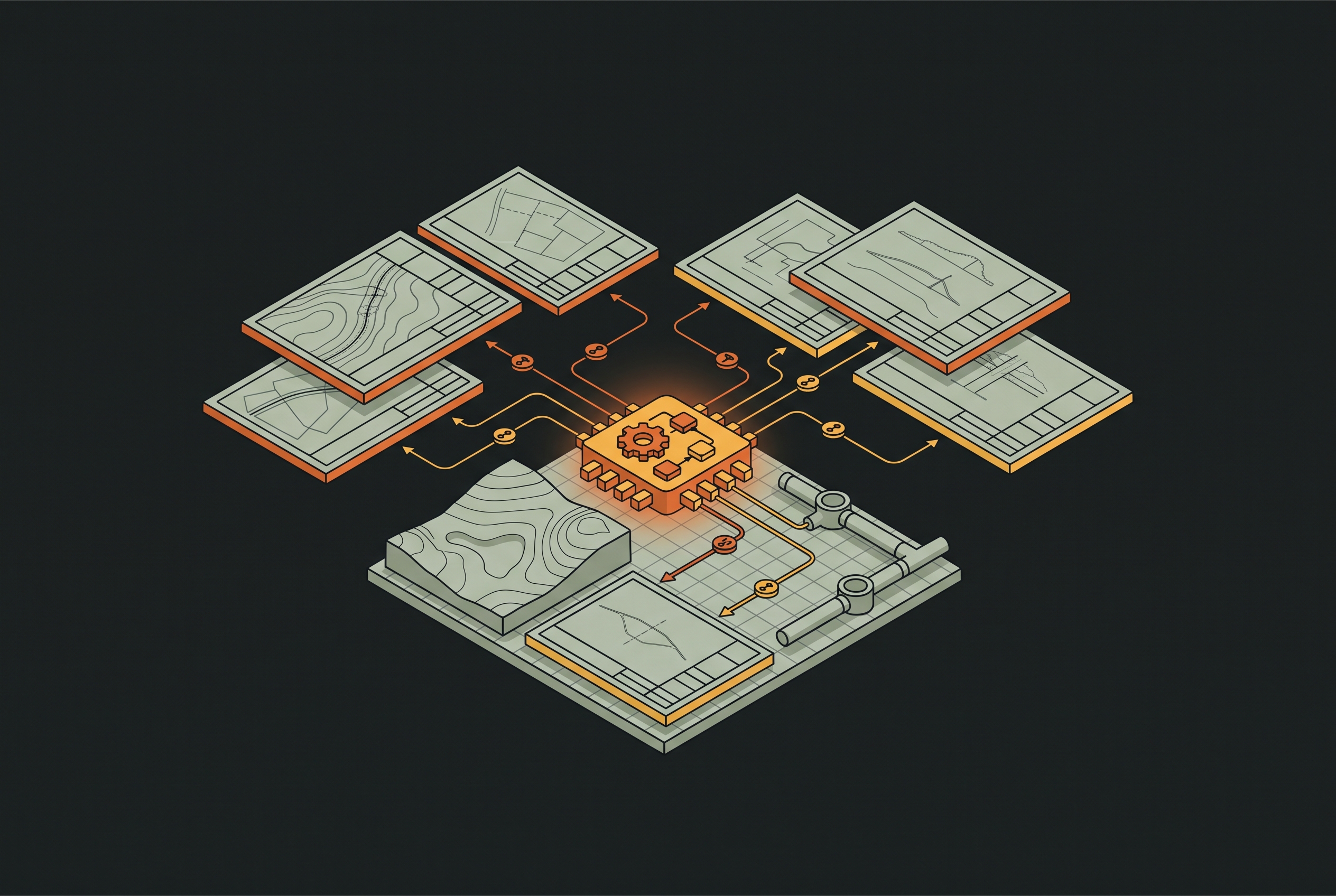
Civil 3D plan production automation depends on separating source geometry from production drawings. Data shortcuts provide that foundation, allowing design changes to flow into referenced objects and their linked production content rather than requiring geometry to be copied and reconciled. Dynamo then turns that structure into repeatable production work. The reference structure must exist before automation can reliably build on it.
Why Civil 3D drawings break down on multi-user projects without a separation strategy
A Civil 3D drawing becomes unwieldy as surfaces, alignments, profiles, pipe networks, and other entities accumulate in the same file. Processing slows, while access to the drawing becomes a constraint on simultaneous work. Dividing files by discipline does not necessarily remove that constraint if several designers still need to modify objects held together. Designers working on the same corridor wait on each other. The file boundary, rather than the division of design responsibilities, determines who can proceed.
Copying geometry into separate drawings permits independent work but creates a different failure. Each copy can diverge from the design object that originally supplied it, leaving production drawings out of sync with the model. Traditional AutoCAD XREFs work well enough for static geometry, but they do not keep civil objects dynamically linked across drawings. Static references are not enough for this purpose. A surface or alignment must remain connected to its design source if dependent production content is to reflect revisions without manual reconciliation.
What data shortcuts actually do — separating source geometry from production drawings
Data shortcuts establish that connection without placing source geometry and deliverable content in the same drawing. A source drawing contains the design object and publishes its shortcut, while a host drawing references the shortcut to compose production content. The files remain structurally separate but dynamically linked. When each 3D object has its own shortcut drawing, users can work on different design elements while referencing the current models. Collaboration no longer depends on collecting all related objects in one editable file.
When a source object changes, a synchronize prompt alerts users of the host drawing, and synchronization pulls in the updated object. Dynamic tables and construction information linked to that object then update automatically. The host consumes the design rather than duplicating it. This is the essential difference between maintaining a reference and maintaining another independent version of the same geometry.
A live relationship is not appropriate for every issue state. When a revision needs to be issued and frozen, the shortcut can be promoted into the host drawing, breaking its dynamic link to the source. That deliberately changes the drawing’s normal relationship to the design. Promotion creates a controlled static state for the referenced object.
How the source-production split makes plan production propagate automatically
Production content can respond to source changes because it sits downstream of the referenced geometry. Labels, profile views, and linked construction information use the shortcut-referenced objects in place of separate copies. Sheet sets built from those production drawings benefit from the same connected structure. Synchronization remains part of the reference workflow. The automation payoff is that teams do not have to reproduce a geometry revision manually in every drawing that uses it.
Setting up the project folder structure and data shortcut paths before design work begins is a prerequisite for that payoff. Source drawings need a known place to publish shortcuts, and production drawings need an established location from which to reference them. Setting up those relationships only after a coordination failure forces manual remediation. Scripts cannot make up for a missing reference structure in the production drawings.
Civil 3D 2026 adds partial surface referencing to this setup. Users can define an area of interest and reference only the surface data within it, rather than bringing an entire large surface into the consumer drawing. This makes the production file smaller and helps it run better. Its reference can cover just the area shown on the sheet. Together with pond data shortcuts, this capability allows more project geometry to remain in dedicated source files while production drawings receive only the data they need.
How Dynamo scripts turn the data shortcut foundation into repeatable plan production
Dynamo automates work on top of the reference structure. Creating, renumbering, and title-blocking sheets manually is slow and error-prone, whereas reusable scripts can compress that work substantially. Reuse depends on stable inputs and organization. A script that works with live-referenced geometry can be used on future projects with the same shortcut structure. A script built around copied geometry works with that one production state but leaves open how the geometry will be kept up to date.
Civil 3D 2025.1 added more design-object nodes, including support for pipe networks and feature lines. These additions enabled complex tasks such as creating multiple corridors, extracting solid layers from terrain surfaces, and annotating multiple design elements automatically. Civil 3D 2025.2 then added sixty-two new nodes for working with labels and opened further opportunities for plan production automation. The production toolkit grew across these releases. That broader coverage gives scripts more of the operations needed to convert referenced design objects into annotated deliverables.
The SCDOT CADD Manual Civil 3D 2026 includes a dedicated Dynamo Tools section, placing scripting within documented agency workflows. A production script belongs in the same workflow as drawing standards, templates, and the work of preparing sheet sets. Its value comes from repeating an established process. Data shortcuts provide the shared object structure that makes such repetition useful beyond the drawing in which a script was developed.
The ACC bottleneck that limited multi-user automation — and how the Data Shortcut API closes it
Autodesk Construction Cloud introduces a practical qualification to this architecture. On ACC projects, teams had to handle Data Shortcuts by hand or use workarounds because they lacked tools to automate the work. Those interventions introduced delays and potential inconsistencies where multi-user collaboration should have provided the greatest benefit. Even a well-structured project could encounter an automation gap in its cloud-hosted shortcut workflow.
The Data Shortcut API addresses the relevant boundary between a sound reference structure and the ability to automate its management. But the supplied release information does not say what it can do, whether it has been released, or which manual steps it removes. Those limits cannot be inferred from adjacent cloud features. An API should therefore not be presented here as proof of unattended shortcut creation, synchronization, or complete plan production in ACC. The distinction is between identifying the automation gap and documenting exactly how much of it a released interface closes.
Civil 3D 2026.2 did ship Bulk Upload, DWG Integrity, Docs 3.0 migration, and cloud sheet sets as ACC features that were generally available. These additions make the cloud platform foundation for plan production substantially more complete than it was before that release cycle. Cloud sheet sets also extend the deliverable-management side of the workflow. They are not evidence of specific Data Shortcut API behavior.
What a properly structured data shortcut project looks like end to end
For a team implementing this approach, the setup sequence begins with the shared project structure. Teams should set data shortcut paths before creating any design files so each source drawing has a known place to publish and each production drawing has a place to find its references. The folder structure gives the team an agreed way to organize its work. It supports both designers exchanging live objects and scripts expecting the same organization across projects.
Source drawings then follow the object-level division of work, with one drawing per alignment, one per surface, and one per pipe network. Each designer publishes the relevant object as a shortcut to the shared folder. Designers can then work on different elements at the same time without editing the same file. Ownership remains with the source drawing. Production users can reference the object without having to look after another editable copy of its geometry.
Production drawings are composed from the shortcuts they need and nothing else. Plan-and-profile sheets, cross-section sheets, and title sheets stay separate from the design sources so their content stays focused on the deliverable. Where a plan sheet covers a particular segment, partial surface referencing can restrict the referenced surface to that segment’s area of interest. The full project surface stays in its source. As designers update source objects, the synchronization workflow already in place brings those changes into the production references and their linked content.
Sheet Set Manager then ties the production drawings into a coordinated deliverable set. Sheet numbering, title block data, and plotting configuration are managed at the set level. The minimum viable workflow should be validated at this stage, before custom scripting is commissioned. This proves the underlying production arrangement first. Dynamo scripts can then automate work such as labeling alignments, numbering sheets, and generating section views, with reuse grounded in the same folder structure, shortcuts, and production templates.
Where in-house Dynamo development makes sense and where outside expertise closes the gap faster
In-house development is viable when a firm has the time and ownership needed to maintain production automation. The learning path from Dynamo Player to production-level plan production scripting is well-defined, but a motivated AEC professional reaches that level over months. Billable engineers on active projects cannot reliably spare that time. Development also creates an ongoing maintenance obligation. If the Dynamo-fluent staffer leaves or moves to a project, scripts without a dedicated owner stop being maintained and their productivity gains erode.
The firm should therefore start with the minimum viable workflow before undertaking a large custom scripting effort. Establishing the shortcut structure, configuring production templates, and validating the sheet set gives the firm a working process before it invests in automating more of it. This separates structural problems from scripting needs. It also gives an internal developer or implementation partner a defined production method to support. Custom work can then build on the firm’s established standards rather than compensate for an unresolved drawing organization.
For firms without a staffer who knows Dynamo well, an implementation partner offers a more practical way to put it to work in production. The partner should build automation on the firm’s own project templates, working in its existing Civil 3D environment and using its drawing standards. New software or replacement workflows are not the premise. On-site enablement from an AI partner can also address integration with existing tools, data security, and staff training. Those responsibilities extend beyond what a one-time license or self-guided tutorial provides and help support the automation after its initial deployment.
Automation increases throughput for the professional team already responsible for the design. Automation can perform repetitive production work, but it does not replace engineering judgment about the resulting deliverable. That boundary remains explicit at the end of the shortcut-to-sheet process. Every output the automation produces still requires review and stamp by a licensed engineer.
Notes
- What's New in Civil 3D 2026: Experience New Time-Savings and Performance Gains - AEC Tech Drop
Provided details on Civil 3D 2026 features including partial surface referencing and pond data shortcuts.
- SCDOT CADD MANUAL CIVIL 3D 2026
Cited as the source for the SCDOT CADD Manual Civil 3D 2026 Dynamo Tools section, which places scripting within documented agency workflows.
- Best Practices for Managing Data Shortcuts in Civil 3D for Multi-User Environments - Autodesk Community
Informed the discussion of best practices for managing data shortcuts in multi-user environments, including folder structure and object-level division of work.
- Exercise 3: Referencing Data Shortcuts
Provided the mechanics of referencing data shortcuts, including how source objects publish shortcuts and host drawings consume them.
- Autodesk Civil 3D 2026 Help
Supplied Civil 3D 2026 help documentation on data shortcut workflows including synchronization and promotion of shortcuts.
- Dynamo for Civil 3D 2026 Release - Dynamo BIM
Provided details on Dynamo node additions in recent Civil 3D releases supporting plan production automation.
- Dynamo for Civil 3D 2025.2 Release - Dynamo BIM
Provided details on the Civil 3D 2025.2 Dynamo release adding nodes for labels and plan production automation.
- Data Shortcut Working Folder Within ACC - Autodesk Community
Informed the section on ACC limitations for data shortcuts, including the need for manual workarounds in cloud-hosted shortcut workflows.
Every new piece from Grading Bench, as it's published.
Follow